Just Chatting Overlay Design: What Actually Works When You're Not Gaming (IRL + ASMR Included)
 Nargis
Published 15 min read
Nargis
Published 15 min read

Heads up: TwitchElement sells stream overlays and widgets, and some links in this post go to our shop. The advice stands on its own either way.
You swapped the category to Just Chatting, kept the same overlay, and something feels off. The chat box is sitting where the minimap used to be. Your webcam frame has an angular neon border that made sense over Apex and now just crowds your jaw. We've audited overlay setups across 500+ TwitchElement client streamers since 2019, and the single most common problem in the talking-head categories isn't ugly design. It's a just chatting overlay that was never designed for a face.
TL;DR
- Gaming overlays are built to frame a game. On Just Chatting, your face is the content, and every element you keep on your just chatting overlay is competing with it.
- ASMR needs its own rules: muted palette, near-zero motion, mic visualizer off to the side, trigger labels instead of hype bars.
- IRL mobile is a different category entirely: portrait-safe frames, low-bandwidth graphics, a visible delay/location note, and almost nothing else.
- The most common fix we ship is subtraction: fewer labels, a smaller chat box, a thinner camera frame overlay. Decision matrix below, save it.
Why Gaming Overlays Quietly Kill Your Just Chatting Retention Graph
Here's the uncomfortable part. When you're playing a game, the viewer's eye has a job: watch the action. Your overlay is furniture around that action. Labels, sub goal bar, recent follower, a 30% opacity chat box: all of it lives in the negative space the game doesn't use.
Talking-head content has no negative space. Your face, your framing, your room. That is the composition. So when a client drags a gaming layout onto their just chatting overlay, every widget that used to sit politely in a corner is now a competing focal point.
We've pulled before/after retention graphs from client Just Chatting streams after overlay simplification, and the pattern is consistent enough that we now lead every talking-head redesign with it: the first 30 to 90 seconds is where a cluttered just chatting overlay bleeds viewers. A new viewer lands, their eye bounces between four animated elements trying to find the thing worth watching, and they leave before they ever hear a full sentence out of you. On gameplay, that same clutter costs far less, because the game is doing the visual anchoring for you.
Real talk: I can't give you a clean percentage lift, and anyone who does is making it up. What I can tell you is that across hundreds of setups, the redesigns that removed elements outperformed the redesigns that added them, and on Just Chatting specifically, not on gameplay.
The mechanism is boring and not mysterious. Attention is finite. If a viewer's first three seconds are spent parsing your layout instead of your face, you spent your best asset on decoration. That's the whole claim.
What Actually Belongs on a Just Chatting Overlay (And What's Just Leftover Gamer Habit)
Strip it to first principles. An element earns a spot on your just chatting overlay if it does one of three things: it frames the face, it gives a lurker something to read, or it gives chat a reason to act. Everything else is habit.
Earns its spot
- A camera frame overlay. Not a border. A frame. It defines where the face lives so the viewer's eye locks immediately. Thin, low contrast, ideally matched to your room lighting rather than fighting it.
- One chat box. Talking-head streams are conversational, and a visible chat box makes lurkers feel like the room is warm. One. Not chat plus a recent-events feed plus an alert queue.
- One goal element, and only during a push. A sub goal or tip goal that lives on screen 24/7 becomes wallpaper in about four minutes. We've watched it happen on stream after stream. If you're running a goal, make it seasonal: bring it in during a subathon or a charity push, then pull it.
Leftover gamer habit
- A permanent "now playing" or game-info panel. You're not playing anything.
- Four stacked labels (latest sub, latest follower, latest cheer, top gifter). Pick one, or rotate them in a single slot.
- Full-screen alert animations with a hard sound sting. On gameplay these cover a lull. On Just Chatting they interrupt you mid-sentence, and the clip that gets cut is the clip where your alert ate your punchline.
- Aggressive animated corner flourishes. Motion in the periphery pulls the eye away from the only thing that matters.
If you want animated stream overlays on a talking-head layout, the trick is motion that breathes rather than motion that flashes. A slow gradient drift behind the cam frame reads as production value. A pulsing neon outline reads as a distraction your viewer's brain has to actively suppress. Our stream overlay packages ship with both speeds for exactly this reason. Full disclosure: that's our own catalog, and we built the slow variants because clients kept asking us to "calm it down" for Just Chatting scenes.
The ASMR Overlay Rule Nobody in the "Best Overlays" Roundups Mentions
Go search for an asmr stream overlay and count how many results are just a gaming pack with the word ASMR pasted on the preview image. We stopped counting. Neon purple, hard glows, a chat box with a glitch animation. On a stream whose entire value proposition is sensory calm.
ASMR viewers are often watching to fall asleep, to manage anxiety, or to come down after a shift. Your overlay is part of the sensory experience, not decoration around it. An ASMR build is still a just chatting overlay underneath, it just runs on different rules. Four of them we now apply to every ASMR client build:
- Muted palette, low luminance. Desaturated tones, nothing above roughly 60% brightness. Most of your audience is in a dark room with the phone six inches from their face. A bright white chat box is physically unpleasant.
- Motion budget near zero. No looping particles, no pulsing borders. If something must move, it should take four seconds or longer to complete a cycle so the eye never registers it as an event.
- Trigger-tag labels instead of hype bars. Swap "LATEST SUB" energy for a small persistent label reading the current trigger: tapping, mouth sounds, brushing, layered whisper. It helps viewers who joined mid-stream decide whether to stay, and it's the single most requested custom element we get in this category.
- Mic visualizer off to the side, not under the face. A subtle audio-reactive element confirms to a viewer with earbuds in that the stream is live and their audio is working. Put it low-left or low-right, keep its amplitude range tight, and never let it bounce into your face region.
Real talk: Alerts are the biggest unsolved problem in ASMR. A sub alert with a sound sting at 2am is a genuinely bad experience for someone who fell asleep to your stream. Most ASMR streamers we work with run alerts muted and visual-only, or route them to a second monitor via a browser source they never composite into the scene. There's no perfect answer yet.
IRL Streaming Breaks Every Overlay Rule Built for Desktop: Here's What Replaces Them
An irl stream overlay is not a Just Chatting overlay with a different background. The constraints are different at the hardware level.
You're on a phone or an encoder backpack, pushing over LTE or 5G, often in portrait or a cropped 16:9 from a vertical sensor. Bandwidth fluctuates. Sunlight destroys contrast. And unlike a desktop setup, a bad overlay decision can be a safety issue, not just an aesthetic one.
What replaces the desktop kit
| Desktop habit | IRL replacement | Why
|
| Detailed animated frame | Flat, single-weight border or none | Fine detail turns to mush at variable bitrate |
| Full chat box on screen | Last 2–3 messages, or nothing | Screen real estate is tiny; you're reading chat on your phone anyway |
| Subtle low-contrast graphics | High-contrast with a drop shadow | Outdoor light washes out anything soft |
| Sub goal bar, always on | Pull it entirely | Every pixel costs bitrate you need for motion |
| No disclaimers | Visible delay note + "location not shown live" | Deters real-time stream-sniping and backseat navigation |
That last row matters more than any graphic. Run a delay, and say so on screen. A small persistent label reading something like "STREAM DELAYED 2 MIN" is the cheapest safety feature in IRL streaming, and it's the one most new IRL streamers skip. You can set delay under the stream settings in your Twitch Creator Dashboard, or handle it in your encoder.
Bandwidth math is unglamorous but real. Every animated element you composite into the scene is motion the encoder has to describe, and on a shaky handheld shot over mobile data, you're already spending your bitrate budget on the walking. The same just chatting overlay that looks polished at your desk will smear the moment you start moving. Flat graphics, no loops, no particles. Save the animated stream overlays for when you're back at the desk.
Camera Frame Overlay Sizing: The Aspect Ratio Mistake We've Seen in 500+ Setups
This is the error we fix more than any other on a just chatting overlay build, and it's almost always the same error: a webcam frame overlay built for a 16:9 cam dropped onto a source that isn't 16:9 anymore.
Here's how it happens. You bought or downloaded a pack. The frame PNG is 1920x1080-safe with a 16:9 cutout. Then you crop your cam to a tighter headshot, or you switch to a vertical phone feed for IRL, or you scale the cam source in OBS Studio while holding a corner handle without matching the frame's own scale. Now the frame's inner edge and your cam's actual edge are a few pixels apart, and there's a hairline of green screen or desktop wallpaper showing along one side. Viewers notice. They just don't tell you.
The sizing rules we apply on every build
- Match the frame aspect to the cam crop, not the cam's native resolution. If you crop to a 4:5 headshot, you need a 4:5 frame. Stretching a 16:9 frame to fit distorts the corner radii and the border weight, and uneven border weight is the thing that makes an overlay look cheap.
- Keep the face in the upper-middle third of the cutout. On talking-head content your eyes should sit roughly a third down from the top of the frame. Centering your whole head vertically leaves dead headroom that makes the shot feel amateur.
- Border weight scales with cam size. A 6px border on a 1200px-wide cam reads as elegant. The same 6px on a 400px corner cam disappears. We typically scale border weight at around 0.5% of cam width.
- Portrait IRL: build for 9:16 with a safe zone. Phone UI, the Twitch mobile chat panel, and platform watermarks eat the top and bottom of a vertical feed. Keep the frame's meaningful detail in the middle 70% vertically.
- Lock the group. In OBS, put the cam source and the frame in a Group, then scale the group. Half the misalignment tickets we've handled came from someone scaling one and not the other.
We've done hands-on testing of webcam frame proportions across mobile IRL rigs versus desktop capture cards, and the surprise finding was how differently border radius reads between the two. A soft 24px radius that looks premium on a desktop 16:9 cam looks almost cartoonish on a small portrait feed. Tighten the radius as the source gets smaller.
The Just Chatting / IRL / ASMR Overlay Decision Matrix
Save this one. It's the sheet we use internally before we open a single design file, and it exists because too many streamers copy-paste a gameplay layout into a just chatting overlay and then wonder why the vibe is off.
| Element | Just Chatting (desktop) | IRL (mobile) | ASMR
|
| Camera frame | Large, 60–75% of screen width, thin border (~0.5% of cam width), 100% opacity | Portrait 9:16, flat high-contrast border or none, detail in middle 70% | Medium, soft-edged, desaturated, border under 50% luminance |
| Chat box | One box, side or lower-third, 70–85% opacity, never overlapping the face region | Last 2–3 messages max, or omit entirely | Small, low-luminance, no glitch/animated message entries |
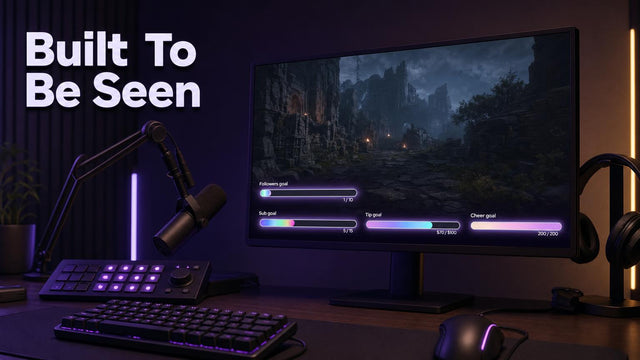
| Sub / tip goal bar | Event-based only (subathon, charity, milestone push), not permanent | Remove. Costs bitrate, adds clutter | Optional, static fill only, no pulse or shimmer |
| Alerts | Lower-third, 2–3 sec, soft sound, never full-screen | Visual only, small, corner-anchored | Muted by default; visual-only or off-scene entirely |
| Labels | One slot, rotating. Latest sub OR follower, not both | Delay notice + "location not shown live" only | Trigger-tag label (tapping / whisper / brushing) replaces hype labels |
| Motion / animation | Slow drift, 4s+ cycles, peripheral only | None. Flat graphics survive variable bitrate | Near zero. Mic visualizer low-side, tight amplitude |
| Background / scene card | Optional blurred or branded card behind cam | None, the world is your background | Dark, warm, static |
The 8-point pre-stream audit
- Open your just chatting overlay in preview and count the elements that move. More than two? Cut one.
- Cover your face with your hand on the preview. Does the layout still make sense? If yes, your face isn't the focal point, fix the hierarchy.
- Check whether the chat box overlaps any part of your head or shoulders at any camera position.
- Verify the frame aspect matches your cam crop exactly. Look for hairline gaps at all four edges.
- Watch your own VOD on a phone at 480p. Anything unreadable comes off.
- Trigger a test alert mid-sentence. Did it eat your audio or cover your mouth?
- If IRL: confirm the delay label is visible and the delay is actually set in your dashboard.
- If ASMR: drop your screen brightness to 30% and check nothing glows. That's your viewer's reality.
Real talk: None of this fixes a stream that isn't compelling. A perfect overlay on a boring stream is a nicely framed empty room. Overlay design removes friction. It doesn't create reasons to stay. If you're struggling to grow your stream, fix the content loop first, then come back and make the frame stop fighting your face.
Free vs Paid: Where a Free Just Chatting Overlay Actually Holds Up
A just chatting overlay free download will get you further in the talking-head categories than it ever would in gaming, and that's a genuinely good thing. Minimalism is the correct aesthetic here, and minimal is easy to make yourself.
Build a frame in Canva, export a transparent PNG, drop it into OBS Studio as an image source above your cam. Use the built-in chat widgets from StreamElements or Streamlabs as browser sources and restyle them with a few lines of custom CSS, mostly font, opacity, and killing the background. That's a working, non-embarrassing just chatting overlay for zero dollars in about 40 minutes.
Where free tends to break down:
- Consistency across scenes. Free pieces from four sources rarely share a radius, weight, or palette. Viewers read that as "unfinished" without knowing why.
- Aspect variants. Free packs almost never ship the 4:5 and 9:16 versions you need the moment you go IRL or vertical.
- Motion quality. Free animated stream overlays skew fast and loud, because that's what previews well in a thumbnail. Slow, tasteful motion is where paid packs earn their money.
- Multi-platform. If you're simulcasting to Kick or YouTube, a single-source chat feed stops being optional.
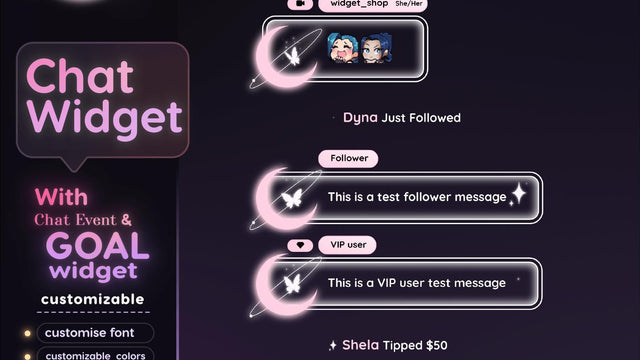
Paid vendors in this space (OWN3D, Nerd or Die, and us at TwitchElement) mostly sell you coherence and variants, not raw quality. Our own catalog leans toward modular pieces for exactly this reason, so you can assemble a just chatting overlay from parts that already match: a Twitch chat widget that restyles cleanly, goal bars you can bring in for a push and pull afterwards, and multistream chat widgets when you're pushing to Twitch and Kick simultaneously. That's our shop, stated plainly.
One more thing worth noticing: Just Chatting, IRL, and ASMR have all been climbing as categories, and the VTuber and PNGTuber crowd has pushed talking-head design language forward faster than the gaming overlay market has. Model-first layouts already assume the character is the focal point. Non-VTuber streamers are just now catching up to that idea.
Ship It This Week
Pick one scene. Delete two elements from it. Re-crop your cam so your eyes land a third down the frame, match the frame aspect to that crop, and go live. Watch the first-90-seconds section of your retention graph over the next four streams and see whether it moves. A good just chatting overlay is mostly defined by what you left out.
If you'd rather not rebuild from scratch, our stream decoration collection is where the talking-head-friendly pieces live: frames, chat boxes, and slow-motion accents built for faces instead of minimaps, with aspect variants included. Grab what fits your category, skip the rest.
And if you want a second pair of eyes on your layout before you commit, drop a screenshot in the TwitchElement Discord. We do informal overlay teardowns there, and the ASMR and IRL folks in that server catch things gamers never would. More breakdowns like this one live on the TwitchElement blog.
Want this on your stream tonight?
Browse ready-made widgets built for StreamElements and OBS, or start with a free one to try the setup first.
Frequently Asked Questions
How to set up a chat overlay for a Just Chatting stream?
Grab a chat widget URL from StreamElements, Streamlabs, or a paid pack, and add it to OBS Studio as a Browser Source, then size it to sit beside or below your camera frame rather than over your face. For talking-head content, set opacity around 70–85% and limit the message count so the box doesn't grow tall enough to crowd your shoulders. Restyle the font and kill the default background with custom CSS so it matches the rest of your layout. Test it by watching your own VOD on a phone at 480p. If the text isn't readable there, it's too small.
What is a Just Chatting streamer?
A Just Chatting streamer broadcasts in Twitch's Just Chatting category, where the content is conversation, reactions, Q&A, or desk work rather than gameplay. Their face and voice are the product, which is why overlay priorities flip compared to gaming: the camera becomes the main visual, not a corner box. Many IRL, ASMR, reaction, and VTuber streamers spend most of their hours in this category.
Is there a free animated stream overlay available for Just Chatting?
Yes, plenty. StreamElements and Streamlabs both ship free overlay libraries with animated options, and you can build a custom animated frame in Canva or After Effects and export it as a transparent WebM for OBS Studio. The catch with free animated stream overlays is that they tend to be fast and flashy because that's what previews well, which is the opposite of what talking-head content needs. If you use one, slow the motion down or strip the looping elements.
What is the best chat overlay for Twitch Just Chatting and ASMR streams?
There's no single best one, but the best chat overlay for talking-head content is whichever you can restyle to near-invisibility. For Just Chatting, a single box at 70–85% opacity with a readable sans-serif and no per-message animation works across almost every layout. For ASMR, go lower luminance, smaller, and disable any entry animations entirely, since motion in the periphery breaks the sensory effect viewers came for. StreamElements and Streamlabs widgets both handle this fine with custom CSS; paid widgets mainly save you the styling time.
What does an IRL mobile stream overlay setup need that a desktop one doesn't?
Three things desktop setups skip: a visible delay notice, a location-safety note, and flat high-contrast graphics that survive variable mobile bitrate. Fine detail and animated elements fall apart on LTE or 5G while you're moving, so a single-weight border beats an intricate frame every time. You also need a portrait-safe 9:16 version of your camera frame, with meaningful detail kept in the middle 70% vertically so phone UI and platform watermarks don't clip it.
One question for you: If your overlay was originally built for a gameplay layout, is your chat box actually blocking your face on Just Chatting streams, yes or no? Post a screenshot and let's argue about it.
About the author: Nargis and her team have been coding these since 2020 and founded TwitchElement in 2019, serving 500+ streamers across Twitch, YouTube, Kick, and TikTok. Catch the streams on Twitch, the research on Google Scholar, or come hang out in the TwitchElement Discord.

Keep reading
Get new free widgets first
One email when we release a new freebie or widget. See the current freebies.
