PNGTuber Overlay Compatibility: What Actually Renders on Veadotube, PNGTuber Plus, and VNyan
 Nargis
Published 12 min read
Nargis
Published 12 min read

Heads up: TwitchElement sells stream overlays and widgets, and some links in this post go to our shop. The advice stands on its own either way.
Mouth flaps fire on voice, the preview looks perfect, you go live, and your sub goal bar is just gone. Not nudged off-screen. Gone. We've untangled that exact PNGTuber overlay mess across hundreds of TwitchElement client setups since 2019, and it is almost never the widget's fault. It's capture method, layer order, and one checkbox most guides skip.
TL;DR
- Capturing Veadotube Mini or PNGTuber Plus with Window Capture on the BitBlt method kills your alpha channel, which is why people chroma key it and then punch holes through everything behind it.
- Game Capture with Allow Transparency ticked solves maybe half the "my widget disappeared" reports we see. The other half is source order: avatar below the widget group, always.
- Chat boxes and goal bars render clean on every engine. Event rain, hype jars, and heavily animated subathon timers are where low-spec rigs start dropping frames.
- Full PNGTuber overlay compatibility matrix plus a 9-step layering checklist are near the bottom. Save them.
Why Your Goal Bar Keeps Disappearing Behind Your PNGTuber (And How to Fix the Layer Order)
OBS Studio draws the Sources list top-down. Whatever sits highest in that list renders over everything beneath it. That part is simple. What breaks a PNGTuber overlay build is that your avatar app is not a browser source, so it does not obey the same transparency rules your widgets do.

Veadotube Mini and PNGTuber Plus both output a window with a real alpha channel. Grab that window with Window Capture set to BitBlt and OBS flattens the alpha to black. Then the usual "fix" is a Chroma Key or Luma Key filter, which quietly chews the soft edges of a line boil animation and can knock transparent gaps straight through the widget layered behind it. Your goal bar didn't disappear. It got keyed out.
- Capture the avatar with Game Capture set to "Capture specific window," then tick Allow Transparency.
- If Game Capture refuses to hook the app, use Window Capture with capture method Windows 10 (1903 and up) and enable Client Area.
- Drag the avatar source below your widget group. Background at the bottom, avatar in the middle, widgets on top. Every stable PNGTuber overlay we've shipped uses that order.
- Group all widgets into one collapsible group so you move and mask them as a single unit.
- If you genuinely must chroma key, pick a key color that appears nowhere in your palette, then drop Similarity from the OBS default of 400 down to roughly 250 for pastel art.
- Hide your background source and check for halos before you go live, not after.
Real talk: Somewhere north of half the "my widget vanished" messages we get in our Discord trace back to one unticked Allow Transparency box. Not a broken product, not a bad theme, not OBS hating you. One checkbox.
This matters most with animated bars. A fill-style bar from our animated Twitch goal bars collection uses a transparent PNG sequence, so any sloppy key on the avatar layer will clip its edges too. Same story with hype jar goal widgets, where the soft glow around the jar is the first thing a bad key eats.
Veadotube Mini vs Veadotube Next vs PNGTuber Plus: Which One Actually Plays Nice With Browser-Source Widgets
Every comparison video out there judges these tools on avatar features. Nobody tests them against a loaded overlay stack. After enough client rebuilds, the ranking for PNGTuber overlay compatibility looks different from the ranking for avatar quality.
Veadotube Mini
The lightest option, and still the one we recommend for older hardware. It's a tiny window, minimal CPU, and it hooks reliably with Game Capture. Its weakness is that people run it as Window Capture out of habit because the window is so small, which is exactly where the alpha dies.
Veadotube Next
More states, more expression control, more resource use. Same capture rules apply. If you're stacking six browser sources already, Next plus event rain on a 4-core CPU is where we start seeing encoder lag spikes in the OBS stats dock.
PNGTuber Plus
Built in Godot, so it behaves like a game window. Game Capture with Allow Transparency is mandatory here; Display Capture will drag your whole desktop in and bury every widget you own. To add art, open the editor screen, click the sprite slot for the state you want (idle, talking, blink), and point it at your PNG. Keep every state at identical canvas dimensions or the bounce animation will jitter against your static widget layer.
VNyan and the Spout2 shortcut
VNyan is overkill for a PNG rig, but it has one real advantage: Spout2 output. With the Spout2 plugin installed, OBS receives a clean texture with alpha intact and you skip window capture entirely. VTube Studio supports the same route, which is why Live2D users rarely hit the transparency problem that PNG users fight constantly. If your PNGTuber overlay keeps eating widgets, Spout2 is the nuclear fix.
Your PNGTuber overlay maker decides your capture method
This is the part buyers miss. The PNGTuber overlay maker you pick, whether that's a browser-based pngtuber maker, Veadotube, or PNGTuber Plus, determines whether your avatar arrives in OBS as a window, a game hook, or a Spout texture. Browser-based makers output a URL, which means your avatar becomes a browser source and stacks with your widgets natively. That's the easiest pngtuber setup to layer, and the heaviest on RAM.
The Discord Reactive Images Trap: What FugiTech's Reactive Actually Breaks in Your Overlay Stack
FugiTech's Reactive is brilliant and it is also the single most common cause of broken collab layouts we see. It gives you a browser source URL that shows Discord voice-channel avatars lighting up when people speak. Streamlabs has a decent walkthrough of Discord reactive images for PNGTubers if you're setting it up cold.
Here's what it breaks. Reactive doesn't watch your microphone. It watches Discord's voice activity state. If your Discord input sensitivity is set too high, your PNG avatar never reacts to your voice, and people spend an hour blaming OBS. Second problem: Reactive lays out every participant in the channel in a row. One friend joins mid-stream and your whole avatar strip re-flows sideways, straight over your subathon timer.
PNGTuber overlay plus Discord reactive: the collab layout problem
- Put the Reactive browser source in its own nested scene, then apply a Crop/Pad filter to that scene so extra joiners get cut off instead of shoving your layout.
- Set the browser source width to a fixed multiple of your avatar slot width. Guessing here is how you get half a face at the canvas edge.
- Run Reactive and your solo PNGTuber overlay only if you mute one visually per scene. Two versions of your own avatar on screen reads as an accident.
- Remember it shows everyone in the VC. We've watched a streamer accidentally display a friend's real-name Discord account on a 400-viewer stream.
Chat Widgets, Alert Boxes, and Subathon Timers: What Actually Renders Clean on a PNGTuber Rig
Good news first. Browser-source widgets are transparent by default in OBS, so a well-built PNGTuber overlay almost never fights with them at the rendering level. Conflicts come from geometry, not code. Your avatar occupies a corner, and most overlay packages assume that corner is empty.
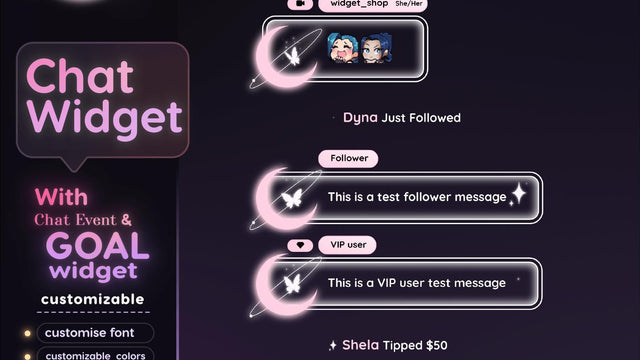
Chat widgets are the safest thing you can add. A vertical chat column from our Twitch chat widgets collection sits opposite the avatar and never overlaps it. Multistream chat widgets behave the same, though pulling Twitch, YouTube, and Kick chat into one source is a real CPU cost on older machines.
Alert boxes are the usual collision. Center-spawning alerts land on top of a center-framed avatar. Move the alert anchor to the opposite third, or set the alert source above the avatar in the list so it reads as intentional foreground. Subathon and timer widgets render clean everywhere we've tested, since they're usually small and text-driven. Count-style Twitch goal widgets behave the same way for the same reason.
How to have a PNGTuber overlay on games without covering the HUD
Crop the avatar window tight with Alt-drag so you're not reserving dead transparent space, then park it in whichever corner the game's HUD doesn't use. Shooters keep the bottom-center busy. Cozy games usually leave the bottom-left free. Build two scenes, one avatar-left and one avatar-right, and switch per game instead of dragging things live.
"PNGTuber overlay free male" and the free-asset trap
That search term is popular for a reason: free male-presenting PNG packs are genuinely scarce compared to the anime-girl default. Just check two things before you build a whole pngtuber setup around a freebie: resolution and license. A 512px avatar upscaled to a 1080p canvas looks mushy next to crisp widget text, and plenty of "free" packs forbid commercial use, which technically includes a monetized channel.
The Low-End PC Problem Nobody Tells PNGTubers: Overlay Stacking and Frame Drops
Most people become a PNGTuber because they're broke or their PC isn't powerful enough for Live2D tracking. Then every guide hands them an overlay pack with eight animated browser sources. That's the cycle nobody addresses.

Each OBS browser source spins up its own render process. In our testing on mid-range Windows machines, a simple text-based widget sits around 100 to 150MB of RAM, and animated particle widgets run meaningfully higher. Ten sources later you've spent more resources on decoration than on your actual avatar engine.
- Turn on Shutdown source when not visible for every widget that isn't on your live scene. Biggest single win, costs nothing.
- Enable Refresh browser when scene becomes active only on timers and goal bars that need accurate state.
- Cap the OBS canvas at 1920x1080 and output at 1080p60 or 936p60. Rendering a 1440p canvas to feed a 1080p stream doubles your compositing cost for no visible gain.
- Pick one hero animated element. One event rain widget firing on subs is fine. Event rain plus a hype jar plus animated stream transitions plus Veadotube Next on a 4-core CPU is not.
- Watch the OBS stats dock for "Frames missed due to rendering lag." Anything above zero during a quiet scene means your overlay stack, not your game, is the bottleneck.
Real talk: If you're on an 8GB machine, a static goal bar and a clean chat box will make your channel look more professional than six animated widgets stuttering at 22fps. Nobody clips a laggy hype jar.
The PNGTuber Overlay Compatibility Matrix (Save This One)
Testing notes and honesty first. These results come from repeated setups on OBS Studio 30.x builds on Windows 11, using current public releases of Veadotube Mini, Veadotube Next, PNGTuber Plus, and VNyan, cross-referenced against support tickets from TwitchElement client builds. Older OBS versions handle browser source transparency and window capture differently, so results on OBS 28 and below will vary. The product links here point to our own catalog, not a neutral third-party roundup.

| Widget type | Veadotube Mini | Veadotube Next | PNGTuber Plus | VNyan (PNG mode) |
| Goal bars / sub goals | Clean | Clean | Clean via Game Capture | Clean via Spout2 |
| Alert boxes | Clean, watch center anchor | Clean, watch center anchor | Reorder above avatar | Clean |
| Chat widgets | Clean | Clean | Clean | Clean |
| Subathon timers | Clean | Clean | Clean | Clean |
| Event rain / particles | Clean, CPU cost | Frame drops on 4-core | Clean, CPU cost | Heavy, use sparingly |
| Discord Reactive Images | Nest + crop filter | Nest + crop filter | Nest + crop filter | Nest + crop filter |
| Animated transitions | Clean | Clean | Rehook Game Capture after switch | Clean |
| Chroma key needed? | No, if Allow Transparency on | No | No, Display Capture only | No, Spout2 |
The 9-Step PNGTuber Overlay Layering Checklist
- Add background source first. Lock it.
- Add avatar via Game Capture, specific window, Allow Transparency on.
- Alt-drag crop the avatar to its actual art bounds.
- Create an empty group named "Widgets." Put it above the avatar.
- Add goal bar, chat, and timer browser sources inside that group.
- Set alert box above the group if alerts should overlap the avatar.
- Enable "Shutdown source when not visible" on every non-live widget.
- Hide the background and confirm there are no black boxes or keyed halos.
- Record 60 seconds, scrub it, check the stats dock for rendering lag.
Build the PNGTuber Overlay Stack Once, Then Stop Touching It
PNG avatars are having a moment again, partly because a good pngtuber setup costs a fraction of a Live2D commission and runs on hardware that would choke on face tracking. The layering problems above are the only real tax on that. Solve them once and your vtuber overlay looks as polished as anyone rigging in Live2D.
If you'd rather skip the trial-and-error, our stream overlay packages ship with pre-grouped scene layouts and transparent PNG assets that sit correctly above a PNG avatar layer without chroma keying anything. Full disclosure, that's our own shop, not a neutral pick. Building it yourself from the checklist above works fine too.
Stuck on a specific combo? Post your OBS source list in the TwitchElement Discord and we'll tell you which layer is eating your widget. More breakdowns like this live on the TwitchElement blog.
Want this on your stream tonight?
Browse ready-made widgets built for StreamElements and OBS, or start with a free one to try the setup first.
Frequently Asked Questions
How do I put my PNGTuber on Discord?
You use a Discord reactive images service like FugiTech's Reactive, which authorizes with your Discord account and gives you a browser source URL for OBS. Upload a speaking image and an idle image, then paste the URL into a new browser source. It reacts to Discord voice activity, not your microphone, so if your avatar never animates, check your Discord input sensitivity settings first.
How to show PNGTuber on OBS?
Add a Game Capture source, set mode to "Capture specific window," select your PNGTuber app, and tick Allow Transparency. If Game Capture won't hook the app, fall back to Window Capture with the "Windows 10 (1903 and up)" method and Client Area enabled. Then drag the avatar source below your widget group in the Sources list so goal bars and chat boxes render on top.
What software do PNGTubers use?
The most common are Veadotube Mini for low-spec machines, Veadotube Next for more expression states, and PNGTuber Plus for bounce and squish animation. VNyan and VTube Studio also support PNG modes and can output through Spout2, which avoids window capture transparency issues entirely. Browser-based pngtuber maker tools exist too, and those load as a browser source instead of a window.
How to add image PNGTuber plus?
Open the editor screen in PNGTuber Plus, click the sprite slot for the state you want to fill (idle, talking, blinking), and select your PNG file. Keep every state image at the same canvas size, otherwise the bounce animation will shift the avatar around relative to your overlay. Save the character preset afterward so you're not re-importing art every session.
Is there a good free male PNGTuber overlay option?
Free male-presenting PNG packs are less common than the anime-girl default, but they exist on itch.io and in various creator asset bundles. Check two things before committing: resolution, since anything under about 1024px looks soft against crisp overlay text at 1080p, and license terms, because many free packs exclude commercial or monetized use.
One question for you: Which engine has actually wrecked your overlay worse: Veadotube swallowing your transparency, or PNGTuber Plus burying your alert box behind the avatar layer?
About the author: Nargis and her team have been coding these since 2020 and founded TwitchElement in 2019, serving 500+ streamers across Twitch, YouTube, Kick, and TikTok. Catch the streams on Twitch, the research on Google Scholar, or come hang out in the TwitchElement Discord.

Keep reading
Get new free widgets first
One email when we release a new freebie or widget. See the current freebies.
