The OBS Settings 80% of New Streamers Get Wrong (And the Exact Fix for Each)
 Nargis
Published 14 min read
Nargis
Published 14 min read

Heads up: TwitchElement sells stream overlays and widgets, and some links in this post go to our shop. The advice stands on its own either way.
Your gameplay looks blocky the second you move the camera. Your facecam turns to soup on any fast pan. And OBS keeps flashing that little red dot in the corner because you're dropping frames again. It's rarely your PC. Across 500+ client setups we've touched since 2019, the same six obs settings mistakes show up over and over, and every one of them takes under ten minutes to fix.
TL;DR
- OBS ships with defaults that are safe for a laptop in 2016 and wrong for almost every modern streaming PC. Nobody's actual rig is the default rig.
- Picking NVENC doesn't make the tradeoffs disappear; it moves them. Wrong preset, wrong result.
- Run an upload test before you pick a bitrate. 6000 kbps CBR is the Twitch ceiling, not a starting point, and it's a bad idea on a 10 Mbps upload.
- Audio at 160 kbps mono is why your stream sounds like a phone call. A keyframe interval of 0 is why your VOD scrubbing is broken.
- Animated overlays, event rain alerts, and subathon timers are real GPU load. We've seen widget stacks alone cause 4–6% frame loss.
The Default Settings Trap: Why OBS's Out-of-the-Box Config Is Built for Nobody's Actual Setup
OBS Studio has to boot on a ten-year-old ThinkPad without setting it on fire. So the defaults are the most conservative thing that will technically produce a video file. That's it. That's the whole design goal.
The result is a config that's simultaneously too weak for a 4070 and too aggressive for a streaming laptop. Simple output mode with "Recording Quality: Same as stream" is the single most common thing we find when someone shares their scene collection with us. It means your local recording (the thing you're going to cut Shorts and TikToks from) is being crushed to the same 6000 kbps your live stream is limited to. Your clips will never look better than your stream. Ever.
The other default nobody touches: Output (Scaled) Resolution sitting at whatever your monitor is. If you run a 1440p or ultrawide display, OBS is scaling from that to your canvas with the Bicubic filter by default, and then the encoder is trying to hold detail it doesn't have bitrate for. That's your "why is my 1080p blurry" answer, and it has nothing to do with your camera.
Real talk: "Stop Using Default OBS Settings" is thumbnail bait at this point, but the underlying claim is true and nobody explains why. The defaults aren't bad settings. They're settings tuned for a machine you don't own.
Here's the fast diagnostic. Open Settings > Output. If the mode dropdown says Simple output mode and you've been streaming more than a month, you've likely outgrown it. Simple mode is fine, genuinely fine, for your first few streams. It just hides the four controls that fix 80% of quality complaints: rate control, keyframe interval, preset, and profile.
NVENC vs x264: The Encoder Mistake That's Quietly Capping Your Stream Quality
Every guide says, "Got an NVIDIA card? Use NVENC." Correct, incomplete, and the reason so many people plateau.
NVENC hands encoding to a dedicated chunk of silicon on your GPU, so your CPU stays free for the game. But hardware encoders have presets, and the default one is not the good one. In current OBS Studio settings, NVENC exposes P1 through P7. P1 is fastest and ugliest. P7 is slowest and cleanest. The sweet spot for almost every streamer we audit is P5 ("Slow" / "New" quality preset) with Tuning: High Quality, Multipass: Two Passes (Quarter Resolution), and Profile: high. If you're on a 30-series or 40-series card, that costs you maybe 1–3% GPU and looks meaningfully better in dark, grainy, high-motion scenes.
x264 isn't dead. If you have a dedicated streaming PC or a beefy CPU sitting idle because your game is GPU-bound, x264 at veryfast still holds an edge in fine detail at low bitrates. The catch: the moment your CPU spikes, you're dropping encoding frames and your stream stutters while your game runs fine. That confuses people for weeks.
| Scenario | Encoder | Preset | Why |
| Single PC, RTX 20-series or newer | NVENC (H.264) | P5, High Quality, 2-pass quarter res | Near-x264 quality, negligible game impact |
| Single PC, AMD RDNA2+ | AMD HW H.264 (AVC) | Quality preset, CBR | Weaker than NVENC but frees the CPU |
| Dedicated stream PC / idle CPU | x264 | veryfast or faster | Best detail retention at 4500–6000 kbps |
| Laptop, integrated graphics only | x264 | superfast, 720p60 | Don't fight the hardware. Drop resolution first. |
| YouTube, AV1-capable GPU | NVENC AV1 | P5 | YouTube ingests AV1; ~30% better efficiency |
One honest limitation: we benchmark on consumer single-PC setups, mostly NA-East, on Windows 11. If you're on Linux with VAAPI or a Mac on Apple VT H.264, the preset names don't map cleanly, and you'll need to test. The OBS team's advanced recording settings guide is the reference we point clients to for the encoder-specific tuning details.
Bitrate Isn't a Guess: The Upload-Speed Math Most New Streamers Skip
Every "best obs settings" post hands you a number. 6000. Done. Nobody tells you to test your line first, which is why half the people running 6000 kbps CBR are silently dropping frames every single stream.
Run a speed test, take your upload number in Mbps, and multiply by 1000 to get kbps. Then use 70% of that as your absolute ceiling. You need headroom for Discord, browser sources, game netcode, and whoever else is on your Wi-Fi. A 20 Mbps upload gives you ~14,000 kbps of headroom, so 6000 is comfortable. A 10 Mbps upload gives you 7,000, which means 6000 is cutting it close and 4500 will look more stable because stable beats sharp.
- Test upload speed three times, at the hour you normally stream. Evening congestion is real on cable in the Northeast.
- Multiply by 700 (Mbps × 1000 × 0.7) for your usable ceiling in kbps.
- Pick from the ladder below, never above your ceiling.
- Set Rate Control to CBR. Twitch requires constant bitrate. VBR on Twitch causes ingest hiccups.
- Set keyframe interval to 2 seconds. Not 0. Not auto.
Keyframe interval at 0 lets the encoder decide, and Twitch's transcoder wants a keyframe every 2 seconds. Leave it at 0, and you get delayed transcode availability, weird VOD scrubbing, and clips that start on a smeared frame. It's a one-dropdown fix, and it's wrong on maybe a third of the setups we open.
Real talk: Twitch's 1080p60 story is not equal for everyone. Partners have had reliable high-bitrate and transcode priority for years; Affiliates and non-affiliates get transcodes when there's spare capacity. If you're small and streaming 1080p60 at 6000 kbps with no transcodes, a viewer on mobile data gets buffering or nothing. 936p60 at 4500 kbps is often the smarter play until you're partnered.
OBS settings for recording 1080p 60fps (stop recording at stream bitrate)
Your local recording should never share settings with your stream. In Advanced output mode > Recording, set Type to Standard, container to MKV (remuxes to MP4 after; MKV survives a crash), and Rate Control to CQP at 18–20 for NVENC or CRF 18 for x264. That's visually lossless-ish at a fraction of the file size of a maxed bitrate. Those are the obs settings for recording that make your clips look sharper than your live stream, which is exactly what you want when a Short pops off.
160 vs 320 Audio Bitrate: The Silent Setting Killing Your Stream's Sound
Bad audio loses more viewers than pixelated gameplay. People will watch a blurry stream with good sound. They will not watch a crisp stream that sounds like a drive-thru speaker.
OBS defaults your audio track to 160 kbps. Twitch accepts up to 320 kbps AAC. Going from 160 to 320 costs you 160 kbps out of a 6000 kbps budget, about 2.6%, and it is the single highest-return change in this entire article if you play music, use a decent mic, or do any kind of collab audio.
Do this in Settings > Output > Audio (Advanced mode), set Track 1 to 320. Then go to Settings > Audio and check two things:
- Sample Rate: 48 kHz. If your interface runs at 48 kHz and OBS is at 44.1 kHz, you get resampling artifacts and, on some setups, slow audio drift over a 6-hour stream. This is the cause of "my audio desyncs late in stream" about half the time we see it.
- Channels: Stereo. Default is fine here, but check it. We've opened setups running mono because someone changed it chasing a mic fix in 2022 and never changed it back.
One more: your Mic/Aux track and your Desktop Audio should not both be feeding Track 1 if you ever want to edit the VOD. Assign mic to Tracks 1+2 and desktop to Tracks 1+3 in the Advanced Audio Properties panel. Stream uses Track 1, recording captures all three, and future-you can cut the game audio out of a clip without recutting your voice.
Why Your Overlays and Widgets Might Be the Real Reason You're Dropping Frames
This is the one nobody writes about, and it's the pattern we see most in support tickets: the OBS Studio settings are fine. The scene is the problem.
Browser sources are full Chromium instances. Each one renders continuously, on GPU, whether or not it's visible. An animated goal bar with a particle loop, an event rain alert layer, a subathon timer, a chat box with animated emote rendering, and a follower ticker is five Chromium instances compositing every frame. On mid-range hardware, we've measured that stack alone accounts for roughly 4–6% rendering frame loss. That number shows up as the "skipped frames due to encoding lag" counter, and everyone misreads it as an encoder problem.
Fixes, in order of impact:
- Check "Shutdown source when not visible" and "Refresh browser when scene becomes active" on every browser source. Instantly kills off-scene rendering cost.
- Cap browser source FPS. Most alert and chat widgets do not need 60fps. In the source's custom CSS or via the widget's own settings, reduce animation weight where you can.
- Don't run oversized browser sources. A chat widget set to 1920×1080 and scaled down to a 400px box is rendering 1080p worth of pixels. Set the source's width/height to the actual display size.
- Audit your alert layer. If you have three alert systems layered from three different eras of your channel, kill two.
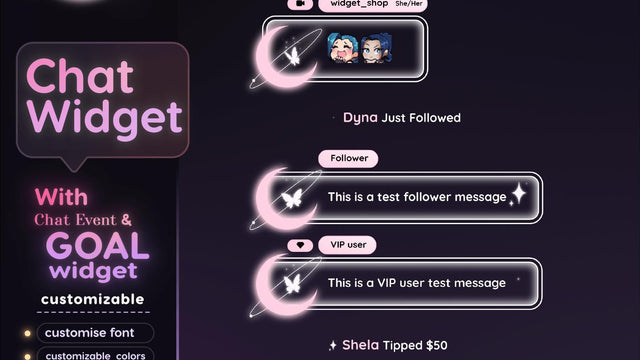
This is genuinely why we build our stream overlay packages lightweight. Animation budget matters more than animation count. Our Twitch chat widgets and subathon and timer widgets are built to render at a fixed, small canvas rather than a full 1080p browser source, which is a boring technical decision that saves people two percent of their frame budget.
Real talk: Read the right counter. "Skipped frames due to encoding lag" = encoder can't keep up (lower preset, lower resolution, switch encoder). "Frames missed due to rendering lag" = GPU can't composite the scene (kill browser sources, cap game FPS). "Dropped frames (network)" = your connection (lower bitrate, go wired). Three different problems, three different fixes, and people try the wrong one constantly.
The OBS Settings Decision Matrix (Save This One)
Cross-reference your hardware and upload speed. These are the OBS streaming settings we hand clients as a starting point, benchmarked on NA-East connections. Adjust down if you're on a higher-latency route to Twitch's ingest.
| Your setup | Upload | Platform | Resolution / FPS | Bitrate (CBR) | Encoder + preset | Keyframe |
| RTX 3060+, single PC | 20+ Mbps | Twitch | 1920×1080 / 60 | 6000 | NVENC P5, HQ, 2-pass | 2 |
| RTX 3060+, single PC | 10–20 Mbps | Twitch | 1664×936 / 60 | 4500 | NVENC P5, HQ | 2 |
| Older GTX / weak upload | 6–10 Mbps | Twitch | 1280×720 / 60 | 3500 | NVENC P4 | 2 |
| Ryzen 7+, no dGPU encode | 20+ Mbps | Twitch | 1920×1080 / 60 | 6000 | x264 veryfast | 2 |
| RTX 40-series | 25+ Mbps | YouTube | 1920×1080 / 60 | 9000–12000 | NVENC AV1 or H.264 P5 | 2 |
| Any, local recording | n/a | Recording | 1920×1080 / 60 | CQP 18–20 | NVENC P6, MKV | 2 |
| Laptop, iGPU only | any | Twitch | 1280×720 / 30 | 2500 | x264 superfast | 2 |
The 6 red-flag defaults to change before your next stream
- Keyframe Interval = 0 or Auto → set to 2. Non-negotiable on Twitch.
- Audio bitrate = 160 → set to 320 on Track 1.
- Sample Rate = 44.1 kHz → set to 48 kHz to match your interface.
- Common FPS value of "30" or a fractional value → set to 60 integer if you're streaming at 60fps. Fractional FPS causes CFR mismatches on ingest.
- Recording Quality = "Same as stream" → set to CQP/CRF so your clips aren't pre-crushed.
- Browser sources without "shutdown when not visible" → check the box on every single one.
On the FPS point: OBS encodes in CFR (constant frame rate) by design, which is what both Twitch and YouTube want. If you've gone poking in Advanced > Video and flipped anything to VFR for a recording experiment, flip it back before you go live. The OBS forum's optimal streaming and recording settings thread is still the best community reference for the edge cases we don't cover here.
A word on where these numbers come from
These aren't from one test rig running a benchmark loop. They're the aggregate of auditing 500+ streamer setups since 2019 across Twitch, YouTube, Kick, and TikTok, mostly solo creators between 5 and 400 average viewers, mostly on North American connections. If you're streaming from a region with a longer route to your ingest server, drop your bitrate 15–20% below what this table says, and you'll drop fewer frames. And if you're running a 4-PC production setup with a hardware encoder box, none of this applies to you, and you already know that.
Fix These in Ten Minutes, Then Come Argue With Us
Nothing in here is exotic. Keyframe to 2, audio to 320, sample rate to 48k, encoder preset off default, bitrate matched to a real speed test, browser sources set to shut down when hidden. Six changes. Most people do them in one sitting and notice the difference on the very next stream: cleaner motion, sound that doesn't crunch, and that red frame-drop indicator finally staying quiet.
If your numbers still look wrong after this, the problem is usually scene weight, not obs settings for streaming. Bring your OBS Stats dock screenshot into the TwitchElement Discord and we'll read the three frame counters with you and tell you which one is lying. It's free, there's a dedicated help channel, and we've done this diagnosis a few hundred times.
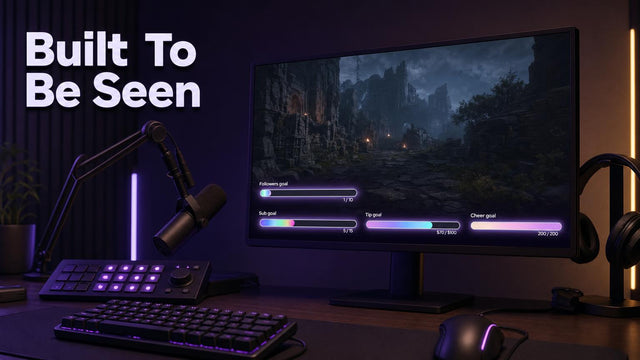
If it turns out your scene is the bottleneck, our Twitch goal widgets and event rain widgets are built at fixed small canvases specifically to keep browser-source cost down, and there's more setup writing on the TwitchElement blog. You can also just watch me break things live on twitch.tv/naskdesign.
Want this on your stream tonight?
Browse ready-made widgets built for StreamElements and OBS, or start with a free one to try the setup first.
Frequently Asked Questions
What are the best settings for OBS?
There's no universal answer, which is why every static checklist eventually fails someone. For most single-PC streamers on Twitch with 20+ Mbps upload, the best OBS settings are 1920x1080 at 60fps, 6000 kbps CBR, NVENC H.264 at the P5 preset with High Quality tuning, keyframe interval of 2, and 320 kbps audio at 48 kHz. Below 20 Mbps upload, scale down to 1664x936 at 4500 kbps before you touch anything else. Match the settings to your upload speed and encoder hardware, not to a YouTuber's screenshot.
Should I use 160 or 320 bitrate for audio in OBS?
320 kbps, in almost every case. Twitch and YouTube both accept 320 kbps AAC, and the extra 160 kbps costs you under 3% of a 6000 kbps total budget. The quality difference is most obvious on music, deep voices, and anything with background room tone. The only time 160 makes sense is if you're on a very constrained upload and need every kilobit for video.
What are the best OBS settings to stream 1080p?
For 1080p60 on Twitch, run Base and Output resolution at 1920x1080, 60 integer FPS, CBR at 6000 kbps, keyframe interval 2, and NVENC at the P5 preset with the high profile. Confirm your upload can sustain 6000 kbps with 30% headroom before committing. If you're an Affiliate rather than a Partner, be aware that transcodes aren't guaranteed, so a 1080p60 stream at 6000 kbps can be unwatchable for viewers on weaker connections. Many small channels get better retention at 1664x936 and 4500 kbps.
How to run OBS smoothly?
Read the OBS Stats dock first and identify which counter is climbing. Encoding lag means your encoder is overloaded, so lower your preset or resolution. Rendering lag means your GPU can't composite the scene, so cut browser sources, enable 'shutdown source when not visible,' and cap your in-game FPS. Network dropped frames mean your connection, so lower bitrate and go wired. Also run OBS as administrator and set your game to borderless windowed rather than exclusive fullscreen.
What are the best OBS settings for streaming in 2026?
The fundamentals haven't changed and probably won't: CBR, keyframe 2, CFR, 48 kHz audio, 320 kbps audio bitrate. What's shifting is codec support. If you have a 40-series NVIDIA card or newer and you stream to YouTube, NVENC AV1 gives roughly 30% better efficiency at the same visual quality. Twitch's enhanced broadcasting is expanding multi-encode and higher bitrate options, so check your dashboard for eligibility before assuming 6000 kbps is still your hard ceiling.
One question for you: Which OBS setting did you leave on default the longest before realizing it was tanking your stream: keyframe interval, audio bitrate, or recording quality set to 'same as stream'?
About the author: naskdesign has streamed on Twitch since 2020 (~8,000 hours live) and founded TwitchElement in 2019, serving 500+ streamers across Twitch, YouTube, Kick, and TikTok. Catch the streams on Twitch, the research on Google Scholar, or come hang out in the TwitchElement Discord.

Keep reading

Get new free widgets first
One email when we release a new freebie or widget. See the current freebies.
